
Through MyUserData and TenantData, form builders have been able to make available user-specific and tenant-specific data (respectively) to all forms within their tenancy. With our custom Data Source functionality, we now also allow you to create sets of data that can be pre-loaded into specific Forms (and by extension, Projects), and specific Teams of Users. This allows you to restrict which users have access to certain sets of loaded data.
The process for creating your Data Source Record is almost identical to how you create a TenantData record, with a few minor adjustments.
DataSource Form
Firstly we need to create a new form in the system. Once the form is created we will add a text field with the field name 'RecordKey', and then set the default value of this field to 'DataSource:Key'. The 'Key' in the default value should be replaced by a key which describes the data. For example, if your Data Source is a set of laws and identifiers for each state in Australia, you might want to set this key as GoverningLaw, in which case, you would set the default value as 'DataSource:GoverningLaw'. We recommend you name your form after the RecordKey value, so that any other Data Source forms you create in the future are easily distinguishable from one another.
Next, just as for TenantData, we add a repeat field called Data. Again, this repeat must have a maximum of 1 row, and it is recommended that you set this as a property.
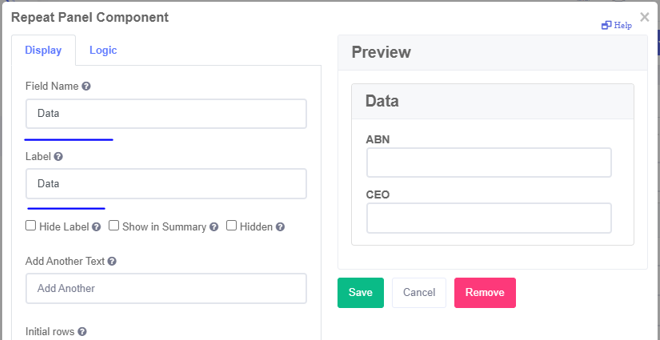
Next you can add the text fields whose values you would like to be able to access through this data source. These fields should be added within the Data repeat panel.
We suggest creating a submission workflow for this form which saves the record in an easily identifiable way. For example, this could be achieved by setting the record to save in a System folder in your records, and setting the record name to the RecordKey value.
Creating your DataSource record
Click 'Save and Open' on your form.
Now, fill out the form with the data you want to make available in this Data Source, making sure to leave RecordKey as-is, or at most adding a team filter (See Restricting By Team, below). Once you are happy with the data for this Data Source, make sure you hit submit.
Editing a DataSource
If you have created a DataSource record but you want to edit some of the values, go to Records and locate the DataSource record. To edit click on the form icon in-line with the Record Matter.
The form will load with the record data. Simply change the values inside the repeat panel and save the form to update the Data Source.
If you want to add different data to the same file, first update your DataSource form, and then load your record, edit and submit.
Accessing the Data
Linking a Form to a DataSource
To allow a form to access the data in a Data Source record, simply add a hidden text field into that form, with the corresponding RecordKey from the Data Source. We call this a Source Field. Continuing our example from above the Source Field would have a value of 'DataSource:GoverningLaw'.
It does not matter what this Source Field has for a field name, but we recommend picking something that will be distinct from your other fields, such as GovLaw_source.
If you have multiple sources for a single form, you will need to add multiple Source Fields.
Restricting Access to a DataSource by Team
There are occasions where certain data should not be accessible to certain users. Sometimes, you might want to load a different DataSource for different Teams in your Tenancy, no matter what form that source is loaded into (i.e. filter at a Source level); or you might want to only load a DataSource for members of a Team, on a specific form (i.e. filter at a Form level).
Filtering the DataSource at the Source level
Filtering at the Source level allows you to add a single Source Field to any form, and have different data appear for different users depending on what Team they are a part of in your Tenancy.
To do this, you need to create the DataSource record with the Team in mind. Before you submit, simply add a colon to your RecordKey and follow it with the name of the specific Team that should have access to this set of data.
For example, the RecordKey field might have the value 'DataSource:GoverningLaw:AdelaideTeam'.
Now any form with the DataSource:GoverningLaw value in the Source Field, will pull in the data in that record only if the user is part of that Team.
At this level, you would need to create separate DataSource records with the GoverningLaw key for each Team that requires their own unique set of data.
Users in more than one team with an associated DataSource record will have access to each Team's data.
Filtering the DataSource at a Form level
Filtering at the Form level allows you to have a single DataSource record, and allow access to that DataSource and connect to it from multiple Source Fields, which each allow a different Team to access this set of data.
To do this, simply add a colon on the end of the RecordKey in the Source Field's default value, and follow it with the name of the specific Team you want to give access to.
For example, your Source Field might have the default value 'DataSource:GoverningLaw:AdelaideTeam'.
This means any time this form is opened by a member of that Team they will have access to the data from the DataSource with DataSource:GoverningLaw as the RecordKey. But if there was another form which required all users to have access to the same Data Source, that would still be possible.
At this level you would need to create multiple Source Fields with their own team filters and the same key to give multiple Teams access to a single DataSource.
Users in more than one team should see the DataSource duplicated.
Referencing the Data
When your form loads the Tenant data will be loaded in to the Form.data object and can be accessed in the 'DataSources' object. This object contains arrays for each DataSource RecordKey and each of those arrays contains the separate Data Source records that exist in the database.
From here, you can pull the data into another field using field logic, or in the custom data source for a dropdown list. The fields are not able to be directly passed into a workflow, and should be dealt with very carefully if they are being passed directly into a template.
Comments
0 comments
Article is closed for comments.