
The Rules Builder is a tool that allows you to create logic in your online forms. You can use the Rules builder to set field values, show and hide fields or disable and enable fields based on certain conditions. Conditions and actions can involve as many fields as you need.
You can access the Rules Builder from the Logic Menu at the top of the Form Builder. The Rules Builder will pop-up in a new window.
Rules
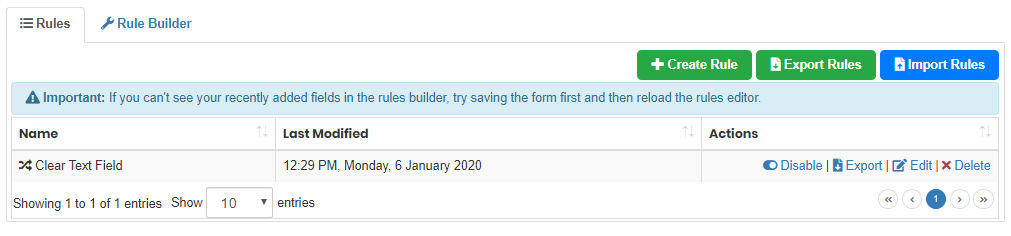
The rules page is where you can view your saved rules. At the top of the page you have the options to create a new rule, export the rules on this form to another location and import rules saved externally to this form.
Each individual rule has four actions that can be performed from this page: disable, export, edit and delete. Disable allows you to stop the rule from running without deleting it. Export allows you to save the individual rule externally so that you can then import it to a different form. Edit allows you to edit the rule. and Delete removes the rule.
You can sort the full list of rules by clicking the arrows beside Name or Last Modified.
Creating or editing a rule
When you click 'Create Rule' or the Rule Builder tab, you will be taken to the Rule Builder page where you can create your new rule.

You should first name your rule something that makes the rule easily recognisable. There's no right or wrong way to do this, but with a Wizard with multiple pages, we recommend numbering your rules by which page on the form they are acting on, so that sorting by name will group the rules by page.
When creating a rule you should work backwards. First figure out what you want to achieve, such as hiding a radio button or setting the value of a text field, and then work out exactly what conditions you want that action to take place. You should not have separate rules that hide or disable the same field, all the conditions on which it should be shown should be wrapped up in the same rule. If this is not possible, such as for a rule which requires And and Or you will need to create a script field to support your rule.
Writing conditions
For each condition that makes up the rule you need to assign a field, an operator and a value to check for.

The field is selected from the first dropdown list. This list will contain the field names of all fields that were present as of the last time you saved your form before opening the Rules Builder. This includes fields present in any nested forms.
The operator is selected from the second list and the value you are checking for needs to be written in the final box.
You can add multiple conditions to the rule by clicking '+Add rule'. These conditions can be linked by 'And's or 'Or's by changing the toggle in the top-left. When 'And' is selected all of the conditions must be met before the actions run, whilst only one of the conditions must be met to run the actions if 'Or' is selected.
Adding Actions
Actions can be set to either run when the conditions in the rule are met, or when they are not met, by adding them to the respective True and False boxes.
Each action asks you to pick an action, to be completed in a certain context, on a particular field, and may require you to add a value to set it to.

The actions are:
- Set Value: Set the value of a field when the condition is met, to some value you need to define
- Show: Will show the selected field when the condition is met, and hide it when the condition is not met. You do not need to set up a corresponding Hide action in the opposite True/False box.
- Hide: Will hide the selected field when the condition is met, and show it when the condition is not met. You do not need to set up a corresponding Show action in the opposite True/False box.
- Disable: Will make the selected field read-only when the condition is met, and enable it when the condition is not met.
- Enable: This will make a field with the 'read-only' property able to receive an input when the condition is met.
- Show Message Box: Not currently working. This should show an alert with text of your choosing the first time the condition is met.
The second dropdown list allows you to set the context as either the Entire Form or the Same Repeat. Select same repeat if the action is to be completed per repeat row. Note that this works best when the fields used in the condition are also in the same repeat. Using fields outside a repeat as the conditions to run an action in a repeat will run the action on every row of the repeat.
If there is something you can't do in the Rules Builder, the next step is to try to achieve the same thing with a script field. If the aim is to hide or show a field, we suggest setting the script field to true or false and then creating a new rule to show or hide the field based on the value of the script field instead. This will avoid any potential issues with required fields that can't be accessed because they are hidden.
For more info on how to create complex conditions in the field logic, see this article.
Comments
0 comments
Article is closed for comments.